
Top 4 Screenshots You Should Take at Disneyland


A great deal of the current Disneyland experience relies on using the Disneyland app to manage Lightning Lanes, dining reservations, ordering, and more. While it is very convenient to have all of this in one place, it is still a wise idea to keep a backup record of certain things in case there are technical problems or you need information quickly on hand later on.
These are the top 4 screenshots that you should take at Disneyland, just in case issues arise!
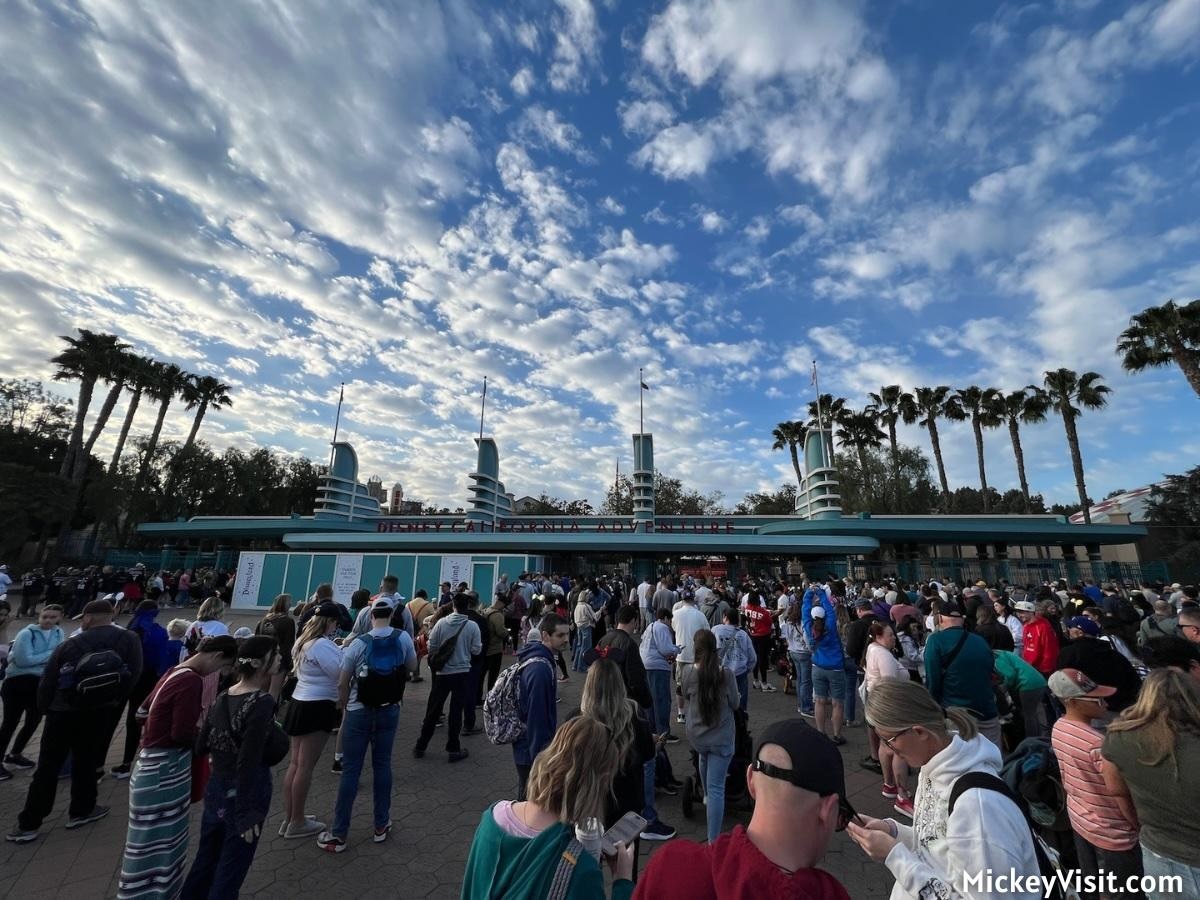
1) It’s always smart to take a photo of your eTickets (electronic tickets) for scanning into the parks. Take a screenshot of the unique barcode on each of the tickets for the different members of your party so that you have access to this “hard copy" on your camera roll.
This screenshot can come in handy in a few different situations, like if you’re having connectivity problems, but another example might be if you’re splitting up from someone who doesn’t have the Disneyland app downloaded on their phone. If they have a screenshot of their eTicket saved on their camera roll, they can scan into the parks on their own with no problem.
2) Take screenshots when you book your Lightning Lane reservations for Disneyland Lightning Lane Multi Pass and Disneyland Lightning Lane Single Pass. This is helpful just in case the app has issues loading your Lightning Lane, or it’s not showing up due to technical difficulties.
This is an especially smart move if you’re using the “modify" option to refresh the screen and grab a better Lightning Lane Multi Pass time for a ride, our top hack to get the Disneyland Lightning Lane we want almost every time. Make sure you take a photo of the confirmation screen once your new Lightning Lane time is officially booked, as it would be a bummer to spend all that effort refreshing for a new time, only to experience a technical glitch!
3) It’s a wise move to take screenshots of entertainment schedules on the Disneyland app so that you don’t have to go through the effort of repeatedly pulling this up throughout the day. If you take a screenshot of the entertainment schedule for the shows you want to see, you can easily view this without having to go through multiple screens in the app.
Character meeting times can likewise be a helpful screenshot to take if you’re looking to meet a certain Disneyland character who has a lot of different meeting times throughout the day, like Mickey and friends on Main Street U.S.A.
4) It’s always a good idea to take a screenshot of the confirmation of any virtual queues you get into. Virtual queues are usually used during the initial opening period of any major new rides at Disneyland. Because it can be a competitive process to snag a spot in one of these virtual queues, it’s wise to take a screenshot of your confirmation if you are lucky enough to secure one.
A virtual queue is also used for access to reserved viewing for the World of Color nighttime spectacular in Disney California Adventure. Make sure to take a quick picture of the confirmation screen, which also includes instructions and when to arrive, so that you have it saved in your camera roll just in case!
In addition to these four screenshots, there are some other ones that you might want to take during your Disneyland trip. You can see our full article on the 13 screenshots and photos you should be taking at Disneyland!
At Mickey Visit, we share the most important tips for planning your trips to Disneyland, Walt Disney World, Disney Cruise Line, Universal, and beyond and share the latest Disney news. Each week, we’ll share some of our top tips here on Laughing Place.